In Chapter 6, "Index Server Query Language," you discovered that Index Server provides a very rich query language designed to support a wide variety of user queries. These user queries include document-content searches using boolean and proximity operators, wild-card matching, and free-text- and vector-space queries. You also saw how Index Server provides the capability of performing document-property-value queries as well.
The power and functionality provided by the Index Server query language provides a somewhat paradoxical situation. In order to leverage this power, it is necessary to construct complex queries using various operators, regular expression syntax, and various rules imposed by the language. This may not pose a problem for a power user, but what about the majority of users trying to find information at your site? The ease with which users can navigate your site and find information plays a significant role in the value your site has to users and how much repeat traffic you can expect.
Fortunately, Index Server provides the capability to leverage the power of HTML forms— a technology that is easy to implement and is familiar to even the most inexperienced users. Index Server uses forms in conjunction with a special type of file, called an Internet Data Query (.idq) File, which specifies how user inputs can be used to construct a query. In other words, it is possible to design comprehensive search applications that require little or no knowledge of the query language, yet provide very powerful search tools. In this chapter, you will learn how to accomplish this.
This chapter begins with an overview of the process of submitting queries to Index Server and a brief discussion of query forms. Following this discussion, you will take a detailed look at Internet Data Query files, their structure, their use, how they interact with query form variables, and how various parameter settings and query types affect performance of the Index Server query engine. The chapter ends with a comprehensive example that demonstrates how to construct query forms and .idq files, which provide even novice users with an easy-to-use powerful tool for performing document searches.
Now that you have gained some insight into the potential power of the Index Server query language, it's time to see how to submit queries to the server and take full advantage of this power. Essentially, there are two methods by which a query can be submitted to Index Server:
All queries posted to Index Server require that an .idq file be specified. This is necessary because .idq files help Index Server determine how to process the specific query. .idq files are covered in great detail in subsequent sections of this chapter.
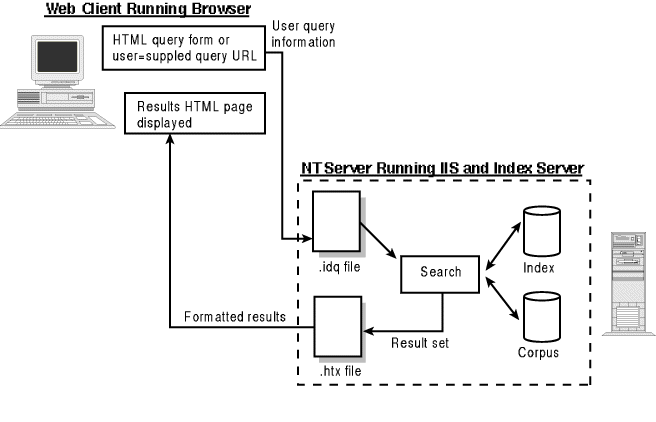
Figure 7.1 illustrates the typical flow of data between a Web client and Index Server when a user submits a query to the server. The following steps occur during this query process:
Figure 7.1. Data flow during an Index Server query.
A query URL is simply a full path specification to an Internet Data Query (.idq) file that has question mark (?) character and some additional query-parameter information appended to the end of the path. The basic structure of a query URL is as follows:
http://host.domain/fullpath?query_parameters
For example, take a look at the following query URL.
http://omniscient.domain1/scripts/samples/search/query.idq?CiRestriction=kittel+and+swank&CiScope=/&TemplateName=query&CiSort=write[a]
In this case, omniscient.domain1 represents the host.domain, /scripts/samples/search/query.idq represents the fullpath to the desired .idq file. In this case, we have simply referenced the sample query.idq file that is included with the Index Server distribution. The remaining information appended after the ? character specifies the following query_parameters:
Don't be too concerned if the preceding material seems a bit unfamiliar. Query parameters, query forms and .idq files will be covered in depth throughout the remainder of this chapter. Additionally, .htx report-template files are covered in detail in Chapter 8, "HTML Extension Files."
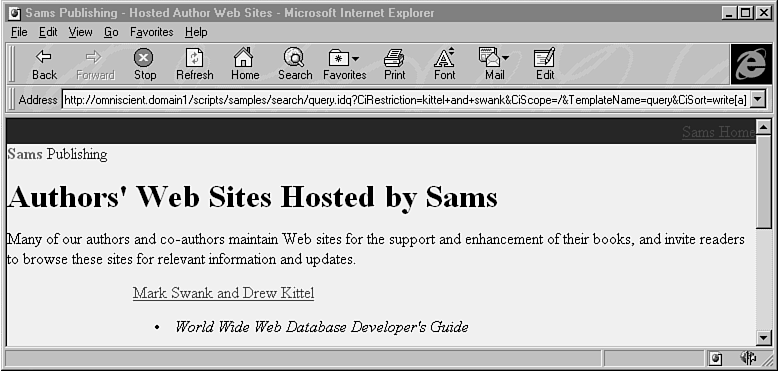
We directly entered the previous query URL in the address entry field of our browser and submitted it to our IIS server while we were out surfing other sites on the Web. This is illustrated in Figure 7.2.
Figure 7.2. Entering a simple Query URL directly using the Web browser Address field.
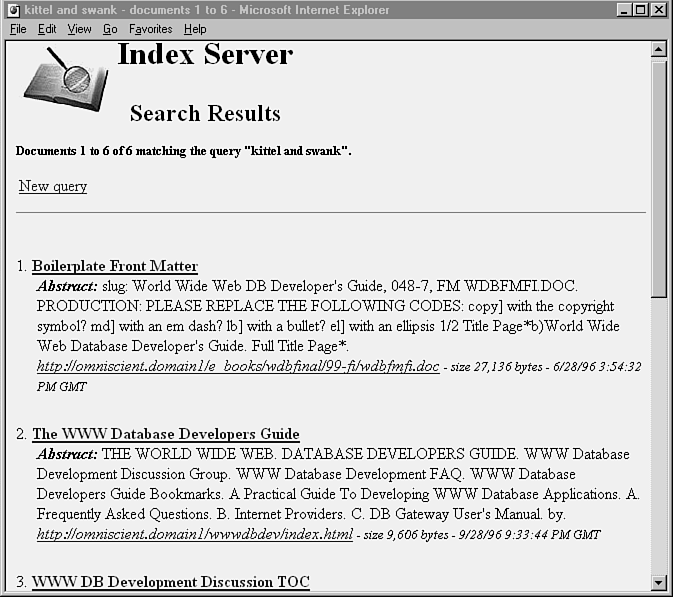
The results of this query against indexed Web documents on our site can be seen in Figure 7.3. This figure illustrates how the results of the prior query were formatted by the Web server (using the specified .htx file) and rendered as HTML on our Web browser.
Figure 7.3. Results of a Query URL directly entered and submitted using the Web browser Address field.
The previous section illustrates how a simple query could be submitted to Index Server by manually entering a query URL. This sounds simple enough, but in reality, submitting even the simplest queries in this manner is tedious and time-consuming. What about when a user needs to enter a complex query? What if the user wants to refine a query without retyping the entire URL? Or what about the casual user who has no in-depth knowledge of the Index Server query language? Wouldn't it make sense to provide a user-friendly method for using the power of Index Server queries? Fortunately, such methods are provided through the use of query forms.
Index Server query forms are simply extensions of standard HTML forms. But rather than referencing a CGI or ISAPI program when the user submits the form, Index Server references an Internet Data Query file (residing on the server). As previously noted, it is this .idq file that helps the server determine how to interpret and process the user's query request. Query forms provide a number of benefits:
The bottom line is that by using HTML query forms, users are given faster, friendlier and more comprehensive access to the very information you are trying to provide for them.
As previously stated, query forms can be created simply by using standard HTML. Using the HTML <FORM> tag pair, a query form can be added to an HTML page. The general template of code used to insert an Index Server query form on an HTML page is as follows:
<FORM ACTION="virtual path to an .idq file" METHOD="POST">

… other form input objects (e.g. text, radio buttons, etc.)

  and other HTML tags and attributes here …

</FORM>
The path specification for .idq files must be the full path name from a virtual root. Relative paths and physical paths can not be used. Establishing virtual roots is covered in Chapter 12.
Additionally, the path name must begin with a slash (/) and cannot include a single period (.) or double periods (..).Examples of valid paths include /search/scripts/ActiveXquery.idq and /scripts/testquery.idq. Examples of invalid paths include d:\inetsrv\scripts\query.idq, scripts/testquery.idq, and scripts/../testquery.idq.
Finally, it is not valid to specify virtual roots that point to .idq files residing on remote Uniform Naming Convention (UNC) shares.
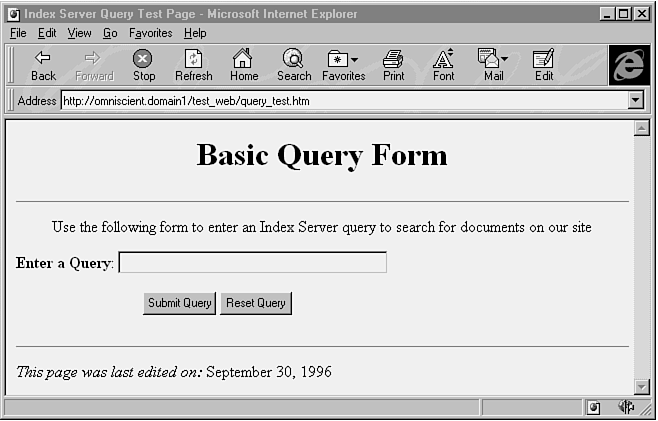
Using this general template, we can design and implement a query form in a manner of minutes. In fact, using many of the HTML editing tools available today, creating basic forms can be as simple as a few mouse clicks. Of course, a basic understanding of HTML coding is necessary to properly use these tools. Listing 7.1 is the HTML source for a basic query form created using Microsoft FrontPage. The actual form is illustrated in Figure 7.4.
Listing 7.1. The HTML source for a basic query form.
<!DOCTYPE HTML PUBLIC "-//W3O/DTD HTML//EN">

<!Basic Index Server Query Form>

<!Drew Kittel, 9/96>

<html>

<head>

<title>Index Server Query Test Page</title>

<meta name="GENERATOR" content="Microsoft FrontPage 1.1">

<meta name="FORMATTER" content="Microsoft FrontPage 1.1">

</head>

<body bgcolor="#FFFFFF">

<h2 align="center"><font size="6">Basic Query Form</font></h2>

<hr>

<p align="center">Use the following form to enter an Index Server

query to search for documents on our site</p>

<form action="/scripts/test_web/basic_query.idq" method="POST">

    <p><strong>Enter a Query</strong>: <input type="text"

    size="50" maxlength="256" name="UserRestriction"></p>

    <table width="100%">

        <tr>

            <td align="right" width="25%"><input type="submit"

            value="Submit Query"></td>

            <td width="50%"><input type="reset"

            value="Reset Query"></td>

        </tr>

    </table>

</form>

<hr>

<p><em>This page was last edited on:</em> September 30, 1996</p>

</body>

</html>
Figure 7.4. Using HTML to create a basic Index Server query form.
This form was created in only a few minutes. Note that query forms can be customized and made much more functional by adding form elements. Additionally, custom modifications, such as adding ActiveX controls or references to VBScript scripts, are easily performed manually after the base HTML page and form elements have been created.
A couple of important things to note about this form are
Using this form, a user could find all documents written by Albert Einstein by performing a property query. The user could enter the following query string and submit the query by clicking the Submit Query button:
@DocAuthor = Albert Einstein
Index Server would then search for and return a list of all indexed documents authored by Albert Einstein.
It is recommended that the total length of URLs or query information submitted from query forms be kept below a maximum length of 4KB of data. This includes all variables that the browser sends to an .idq file. Note that longer queries can be sent, but if the query exceeds 4KB, the behavior is unpredictable.
HTML query forms provide the interface by which users can submit queries to IIS and Index Server running at your site. But how does Index Server process the queries that it receives from clients? Because Index Server is a tightly integrated add-on component to Internet Information Server (IIS) and Peer Web Services (PWS), the Index Server querying process works in close interaction with IIS and PWS. This has allowed Microsoft to implement a model of interaction that is very similar to the Internet Database Connector (IDC) model. The IDC model uses .idc files to help the IDC component of IIS convert queries from HTML forms into searches against Open Database Connectivity (ODBC) data sources. These sources can include databases such as Microsoft SQL Server and Access as well as other relational databases for which ODBC drivers are available.
Additional information about the Internet Database Connector (IDC) model and the uses of .idc files can be found in Chapter 8, "Publishing Information and Applications" of the online documentation distributed with Internet Information Server.
Index Server interacts with IIS using a model that is very similar to the one used by IDC. However, Index Server uses .idq files rather than .idc files to help convert queries from HTML forms. When IIS or PWS receives a query, it locates the .idq file referenced in the ACTION attribute of the submitted HTML form. After this file is located, IIS or PWS sends this file and the query data from the HTML form to Index Server. Index Server then uses the .idq file and query data to conduct a search of document content and properties for all indexed documents on your site.
.idq files also allow you to define a variety of query parameters, such as:
These and other .idq file parameters are covered in subsequent sections of this chapter. Additionally, a full reference of parameters can be found in Appendix B, "IDQ and HTX File Variables."
Internet Data Query files are divided into two main sections:
The [Names] section is optional and may be disregarded for most standard queries. Both sections of the file may be commented by starting comment lines with the pound (#) sign. Additionally, blank lines will be ignored. The general template of a .idq file is as follows:
#Start optional [Names] section

[Names]

property set entries

…

#Start [Query section]

[Query]

entries for required query parameters

…

entries for other query parameters

…

#end of idq file
The [Names] section of the .idq file is optional. It is used to define non-standard column names that can be referenced in a query. The column names entered in this section actually refer to ActiveX (that is, OLE) document properties created in documents (using IPropertyStorage) or in Microsoft Office (using summary and custom properties).
Chapter 6 presented a rich set of standard property names that are always available for queries. If this standard set of property names meets your query requirements, then there is no need to include the [Names] section in your file.
On the other hand, if your queries include references to properties not listed in this standard set, you will probably need to create entries for these properties in the [Names] section of your .idq file. Each column (property) entry consists of five fields:
The template for a column entry is structured as follows:
Friendly_Name ( opt DTYPE ) = xxxxxxxx-xxxx-xxxx-xxxx-xxxxxxxxxxxx nn
Friendly names (field 1) are simply property names for which the intended meaning is readily apparent. For example, the friendly name DocWordCount refers to the property that specifies the number of words in a document. The friendly name is used as the token in query restrictions and sort specifications, for example in the query restriction @DocWordCount > 1000, @DocWordCount is the token. One unique aspect of friendly names is that multiple friendly names can be used to refer to the same property. This can come in handy if you want to tailor queries to match different audiences. For example, an English friendly name might be replaced by its Spanish counterpart if the property is to be used in queries by a Spanish-speaking audience.
Friendly names for standard properties (that is, those not explicitly listed in the [Names] section) are always available for use in queries.
Friendly names must not contain special characters such as commas(,), angle brackets (<>), periods (.), exclamation points (!), asterisks (*), equal signs (=), or spaces.
The property datatype (field 2) is optional and must be enclosed in parentheses if it is specified. The datatype is used when the query restriction is being parsed to ensure that user inputs are properly interpreted. If the datatype is not specified, a default value of DBTYPE_WSTR is assumed.
Table 7.1 lists all supported datatypes and specifies their corresponding ActiveX mnemonic as well as formatting information.
| DATATYPE | ActiveX Mnemonic | Format Information |
| DBTYPE_I1 | VT_I1 | Integer |
| DBTYPE_I2 | VT_I2 | Integer |
| DBTYPE_I4 | VT_I4 | Integer |
| DBTYPE_I8 | VT_I8 | Integer |
| DBTYPE_UI1 | VT_UI1 | Unsigned Integer |
| DBTYPE_UI2 | VT_UI2 | Unsigned Integer |
| DBTYPE_UI4 | VT_UI4 | Unsigned Integer |
| DBTYPE_UI8 | VT_UI8 | Unsigned Integer |
| DBTYPE_R4 | VT_R4 | Real |
| DBTYPE_R8 | VT_R8 | Real |
| DBTYPE_CY | VT_CY | Currency value. Value is expressed as nnn.dd where nnn and dd are integers (for example, 23.45). This datatype does not specify the currency format. The value must not be preceded by $ or any other specifiers. |
| DBTYPE_DATE | VT_DATE | Date value. Value may be expressed as an absolute date or relative date. Absolute dates are expressed in one of two forms: yyyy/mm/dd or yyyy/mm/dd hh:mm:ss. Relative dates can only be used to express dates prior to the current date and time and are expressed using -#y, -#m, - #w, -#d, -#h, -#n, -#s (for years, months, weeks, days, hours, minutes, seconds, respectively, prior to the current date and time). For example, -5d would be used to specify 5 days prior to the current date. Positive future dates (that is, future dates) are not supported. |
| DBTYPE_BOOL | VT_BOOL | boolean value. The only valid values are TRUE or FALSE. |
| DBTYPE_STR | VT_LPSTR | String value. All input values are accepted. |
| DBTYPE_WSTR | VT_LPWSTR | Unicode string value. All input values are accepted. |
| DBTYPE_BSTR | VT_BSTR | Basic string value. All input values are accepted. |
| DBTYPE_GUID | VT_CLSID | Globally Unique Identifier (GUID). GUIDs are expressed as xxxxxxxx-xxxx-xxxx-xxxx-xxxxxxxxxxxx. |
| DBTYPE_BYREF | Not applicable | This is an older operator that should be added to string values, such as DBTYPE_STR|DBTYPE_BYREF or DBTYPE_WSTR|DBTYPE_BYREF. |
| DBTYPE_VECTOR | VT_VECTOR | This is an older operator. Full support is provided for vector properties. |
| VT_FILENAME | VT_FILENAME | See DBTYPE_DATE (VT_DATE) for information on formatting the relative and absolute versions of these expressions. |
Integer values in Table 7.1 may be expressed in either decimal (base 10) or hexadecimal (base 16) form. When using hexadecimal notation, the number must be preceded by 0x, as in 0x2E7.
Real values in Table 7.1 may be expressed using scientific notation.
Fields 4 and 5 contain the Property Global Unique Identifier (GUID) and the Property Name/ID (PROPID), respectively. The GUID in field 4 identifies the property set for the column. Property sets are simply collections of properties that have something in common. For example, F29F85E0-4FF9-1068-AB91-08002B27B3D9 is the GUID for the Microsoft Office document-summary properties set. This set includes properties with friendly names such as @DocWordCount, @DocAuthor and similar document properties.
The property name or property ID in field 5 represents the name of the property as it appears in the ActiveX property-name space. If a property name is specified, it must be enclosed in quotations marks (as in "13"). If a property ID is specified instead of a property name, it may be expressed by decimal or hexadecimal notation. Note that hexadecimal numbers must be preceded by 0x.
Following are a few sample entries used to define the ActiveX summary information properties for Microsoft Office documents. Note that these are standard properties and need not be specified; in other words, the friendly names are always available for queries. They are shown here simply to illustrate how entries should appear in the [Names] section.
[Names]

DocTitle                              = F29F85E0-4FF9-1068-AB91-08002B27B3D9 2

DocSubject( DBTYPE_STR|DBTYPE_BYREF ) = F29F85E0-4FF9-1068-AB91-08002B27B3D9 3

DocAuthor( DBTYPE_STR|DBTYPE_BYREF )  = F29F85E0-4FF9-1068-AB91-08002B27B3D9 4

DocEditTime( DBTYPE_DATE )            = F29F85E0-4FF9-1068-AB91-08002B27B3D9 0xa

DocLastPrinted( DBTYPE_DATE )         = F29F85E0-4FF9-1068-AB91-08002B27B3D9 0xb

DocPageCount( DBTYPE_I4 )             = F29F85E0-4FF9-1068-AB91-08002B27B3D9 0xe

DocWordCount( DBTYPE_I4 )             = F29F85E0-4FF9-1068-AB91-08002B27B3D9 0xf
Following is a sample entry for defining the HTML <META> tag NAME attribute as a column name (property) that can be referred to in a query.
[Names]

MetaDescription(DBTYPE_WSTR) = D1B5D3F0-C0B3-11CF-9A92-00A0C908DBF1 "generator"
Note that the GUID value (field 4 of this entry) for the Meta property can be found as a registry parameter located at
HKEY_LOCAL_MACHINE

\System

 \CurrentControlSet

  \Control\HtmlFilter

   \MetaTagClsid
Because the Index Server HTML filter extracts text from the CONTENT field of the <META> tag in HTML files, you can query against the content in this field by adding the previous entry to your .idq file. You can then refer to the property by its friendly name, MetaDescription, in the queries. For example, suppose you wanted to find all HTML documents generated using Microsoft FrontPage. HTML files generated by FrontPage include a <META> tag similar to the following:
<meta name="GENERATOR" content="Microsoft FrontPage 1.1">
Knowing this, you could submit the following query to identify these files:
@MetaDescription = Microsoft FrontPage
Additional information regarding ActiveX properties can be found in the Win32 Software Development Kit (SDK).
Additional information regarding Microsoft Office properties can be found in the Microsoft Office Software Development Kit (SDK).
The [Query] statement identifies information that follows it as a query restriction. In other words, the query section of the .idq file is used to define those parameters that will be used in a query. Within this section, the value of a parameter variable may be specified in one of three ways:
Four parameters must be specified in the [Query] section. These are
Additional information regarding the format and valid values for these required parameters may be found in Appendix B.
Appendix B contains formatting information for all parameters that can be set in HTML query forms and/or .idq files. Following are some of the more commonly used non-required parameters:
.idq file parameter and query parameter variables can be defined and set within the HTML query form that invokes the .idq file.
Variables can be set in HTML query forms in the following ways:
<INPUT TYPE="TEXT" NAME="CiRestriction" SIZE="50" MAXLENGTH="120" VALUE=" ">
<EM>Please select the desired Scope for your search:<EM><BR>

<INPUT TYPE="RADIO" NAME="CiScope" VALUE="/" CHECKED> Default<BR>

<INPUT TYPE="RADIO" NAME="CiScope" VALUE="/e_books"> Electronic Books/References <BR>

<INPUT TYPE="RADIO" NAME="CiScope" VALUE="/test_web"> Test Web Site <BR>
<EM>Please select the Results Template desired:<EM><BR>

<INPUT TYPE="RADIO" NAME="UserTemplateForm" VALUE="default" CHECKED> Default Report<BR>

<INPUT TYPE="RADIO" NAME="UserTemplateForm" VALUE="terse"> Terse Report <BR>

<INPUT TYPE="RADIO" NAME="UserTemplateForm" VALUE="verbose"> Verbose Report <BR>
<INPUT TYPE="HIDDEN" NAME="ThisQueryForm" VALUE="/test_web/thisquery.htm">
Query parameters may be set in .idq files in the following ways:
[Query]

CiScope=/

CiColumns=FileName, Size, Rank characterization, VPath, DocTitle, write

CiRestriction=#FileName *.*

CiTemplate=/scripts/test_web/basic_template.htx
%parameter_from_html_form%.
<INPUT TYPE="TEXT" NAME="CiRestriction" SIZE="50" MAXLENGTH="120" VALUE=" ">

<P>

<EM>Please select the desired Scope for your search:<EM><BR>

<INPUT TYPE="RADIO" NAME="UserScope" VALUE="/" CHECKED> Default<BR>

<INPUT TYPE="RADIO" NAME="UserScope" VALUE="/e_books"> Electronic Books/References <BR>

<INPUT TYPE="RADIO" NAME="UserScope" VALUE="/test_web"> Test Web Site <BR>

<P>

<EM>Please select the Results Template desired:<EM><BR>

<INPUT TYPE="RADIO" NAME="UserTemplateForm" VALUE="default" CHECKED> Default Report<BR>

<INPUT TYPE="RADIO" NAME="UserTemplateForm" VALUE="terse"> Terse Report <BR>

<INPUT TYPE="RADIO" NAME="UserTemplateForm" VALUE="verbose"> Verbose Report <BR>
[Query]

# Required parameters

CiScope=%UserScope%

CiColumns=FileName, Size, Rank haracterization, VPath, DocTitle, write

CiRestriction=%CiRestriction%

CiTemplate=/scripts/test_web%UserTemplateForm%.htx

# Other parameters (hardcoded)

CiMaxRecordsInResultSet=100

CiMaxRecordsPerPage=12

CiSort=Rank[d]

CiCatalog=d:\

CiFlags=DEEP
When performing placeholder substitutions for the CiTemplate parameter in .idq files, it is best to perform substitutions of the base name and to hard-code the path to the template file and the .htx extension. For example, CiTemplate=/scripts/%UserTemplate%.htx will always cause Index Server to try to use the named report-template file. If the file does not exist, no results will be sent to the requesting client.
Now consider the case where the user is allowed to specify the full path name for the template file. This is the case when only CiTemplate=%UserTemplate% is used. This creates the potential for unauthorized users to view files residing in Execute Only script directories (such as the D:/InetPub/scripts directory, which was set up during the default installation of Index server). How is this possible? Suppose the client sends a URL that includes CiTemplate=/scripts/userinfo.pl. This file path specification would be substituted for the CiTemplate placeholder, which would cause Index Server to interpret this file as the desired report template. This would result in the file's contents being sent back to the user—an unintended side effect of using CiTemplate placeholders in this manner.
.idq files can use conditional expressions to determine how various variable and parameter substitutions will take place. This is accomplished using if-then-else conditional logic. The general syntax is as follows:
%if condition% …idq file content… %else condition% …idq file content… %endif%
where condition is of the form
value1 operator value2
Table 7.2 lists the operators that can be used in .idq file conditional expressions.
| Operator | Description |
| EQ | if value1 equals value2 |
| NE | if value1 does not equal value2 |
| LT | if value1 is less than value2 |
| LE | if value1 is less than or equal to value2 |
| GT | if value1 is greater than value2 |
| GE | if value1 is greater than or equal to value2 |
| CONTAINS | if any part of value1 contains the string value2 |
You can use conditional expressions to set .idq parameter values based on a user's input to a query form. For example, suppose a user can use a query form's radio buttons to select the scope to use for a query. Selection options are full or limited, and their corresponding form values are FULL and LIMITED, respectively. The following code shows how conditional expressions can be used to set CiScope within the .idq file.
CiScope=%if UserScope eq "FULL"%/%else%/e_books%endif
If the user selects full scope, CiScope is set to /; otherwise CiScope is set to /e_books.
Common Gateway Interface (CGI) variables can also be referenced within .idq files. A complete listing and reference of available CGI variables is given in Appendix B.
When designing query forms and corresponding .idq files, keep in mind that various types of queries, query construction and .idq file parameter settings can have dramatic impacts on Index Server's performance (that is, the capability of the query engine to efficiently resolve the query). For small sites with limited document sets and less traffic, these performance issues are less critical; nevertheless, it is good practice to construct your query applications efficiently so that growth at your site does not require you to modify inefficient queries that are sapping critical CPU and memory resources. Following are a few terms and concepts to aid in your understanding of Index Server performance issues.
Following are a few general query and .idq file performance guidelines and concepts to keep in mind.
While sequential queries are faster and more efficient than non-sequential queries, they have limitations:
Efficient queries can be obtained by setting CiSort to nothing or Rank[d], by setting CiForceUseCi=TRUE, and by not referencing CiTotalNumberPages, CiRecordsNextPage or CiMatchedRecordCount in report-template files.
Because enumerated queries force a recursive search of files on disk to find matching properties, they are slower and less efficient than purely indexed searches. Be aware of the conditions that force a query to be enumerated:
Setting CiForceUseCi=TRUE forces queries to use the content index, thus bypassing the issue of enumeration. However, result sets may be out-of-date as a result and not include listings for recently modified files. When disk files have been modified but not yet filtered, the CiOutOfDate built-in variable is set to 1. Additionally, if the query proves to be too complex to resolve simply using the content index, the CiQueryIncomplete built-in variable is set to 1. These variables can be checked within report-template files and used to notify users of these conditions. .htx report-template files are covered in the next chapter.
Queries sorted in descending order having a total number of matches that exceeds the value of the CiMaxRecordsInResultSet parameter cause additional non-index tests to be performed during index retrieval. This is necessary so that items that fail these additional tests can be removed, thus freeing space in the results set for items that match the full query. This is a processing- and resource-intensive operation.
Non-indexed trimming operations can be deferred by setting CiDeferNonIndexedTrimming=TRUE. When this is done, the query engine picks the CiMaxRecordsInResultSet items first. Items are then trimmed. As a result, result sets may be less than the value of CiMaxRecordsInResultSet. Consider setting CiDeferNonIndexedTrimming=TRUE to improve performance on queries where the scope points to the entire document corpus and little security is implemented on the server. Additional information about non-indexed trimming can be found with the description of the CiDeferNonIndexedTrimming variable in Appendix B.
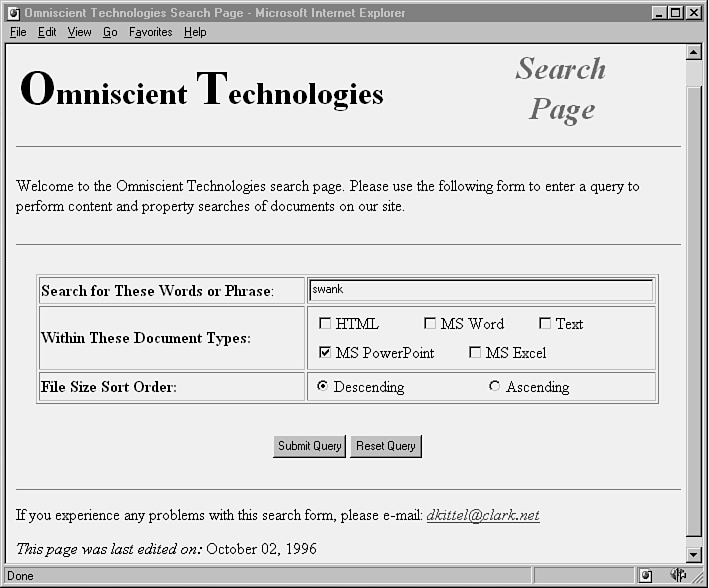
This chapter has presented all the essential information you need to start developing your own query forms and .idq files. In this section, you'll combine all that you've learned to understand the details of a complete application. Figure 7.5 shows a query form designed for searches on our test Web site. While this appears to be a relatively simple form, it demonstrates the ease with which you can create query forms and .idq files. The example also illustrates the linkage between the form and parameters in the .idq file. Finally the example demonstrates how even inexperienced users can tap into the power of Index Server to perform complex queries and searches for documents on your site—without even knowing the Index Server query language.
Figure 7.5. This Index Server query form provides users with the ability to choose the document types to be searched and to set the sort order for the results set.
Listing 7.2 presents the HTML code used to create the form in Figure 7.5. Once again, FrontPage was used to create the base HTML required for the form, and a few modifications were added by hand. In this code, several input objects are created to collect user inputs and define a number of variables that are used to pass these inputs to the .idq file when the form is submitted. These include
Listing 7.2. HTML code for the Index Server query form shown in Figure 7.5.
<!DOCTYPE HTML PUBLIC "-//W3O/DTD HTML//EN">

<html>

<head>

<title>Omniscient Technologies Search Page</title>

<meta name="GENERATOR" content="Microsoft FrontPage 1.1">

<meta name="FORMATTER" content="Microsoft FrontPage 1.1">

</head>

<body bgcolor="#FFFFFF">

<table width="100%">

</table>

<p></p>

<table width="100%">

    <tr>

        <td width="60%"><font size="7"><strong>O</strong></font><font

        size="6"><strong>mniscient </strong></font><font size="7">

        <strong>T</strong></font><font

        size="6"><strong>echnologies</strong></font></td>

        <td align="center" width="30%">

        <table width="100%">

            <tr>

                <td align="center" width="40%"><font

                color="#008040"><font size="6"><em><strong>Search

                </strong></em></font></font></td>

            </tr>

            <tr>

                <td align="center" width="20%"><font

                color="#008040"><font size="6"><em><strong>Page

                </strong></em></font></font></td>

            </tr>

        </table>

        </td>

    </tr>

</table>

<hr>

<p align="left">Welcome to the Omniscient Technologies search

page. Please use the following form to enter a query to perform

content and property searches of documents on our site.</p>

<hr>

<form action="/scripts/test_web/omni_search.idq" method="POST">

    <input type="hidden" name="TemplateBaseName" value="omni_search"><div

    align="center"><center>

    <table border="1" width="95%">

        <tr>

            <td width="45%"><strong>Search for These Words or

            Phrase</strong>: </td>

            <td width="50%"><input type="text" size="65"

            maxlength="256" name="UserRestriction"></td>

        </tr>

        <tr>

            <td width="35%"><strong>Within These Document Types:

            </strong> </td>

            <td width="50%">

            <table width="100%">

                <tr>

                    <td width="100%">

                    <table width="100%">

                        <tr>

                            <td width="30%"><input

                            type="checkbox" name="HTML"

                            value="ON" CHECKED>HTML</td>

                            <td width="33%"><input

                            type="checkbox" name="MSWORD"

                            value="ON">MS Word </td>

                            <td width="34%"><input

                            type="checkbox" name="TEXT"

                            value="ON">Text</td>

                        </tr>

                    </table>

                    </td>

                </tr>

                <tr>

                    <td width="100%">

                    <table width="100%">

                        <tr>

                            <td width="40%"><input

                            type="checkbox" name="MSPPT"

                            value="ON">MS PowerPoint</td>

                            <td width="50%"><input

                            type="checkbox" name="MSEXCEL"

                            value="ON">MS Excel</td>

                        </tr>

                    </table>

                    </td>

                </tr>

            </table>

            </td>

        </tr>

        <tr>

            <td width="35%"><strong>File Size Sort

            Order: </strong></td>

            <td width="50%">

            <table width="100%">

                <tr>

                    <td width="50%"><input type="radio" checked

                    name="UserSortOrder" value="size[d]">Descending </td>

                    <td width="50%"><input type="radio"

                    name="UserSortOrder" value="size[a]">Ascending</td>

                </tr>

            </table>

            </td>

        </tr>

    </table>

    <p></p>

    </center></div><div align="center"><center>

    <table width="90%">

        <tr>

            <td align="right" width="50%"><input type="submit"

            value="Submit Query"></td>

            <td width="50%"><input type="reset"

            value="Reset Query"></td>

        </tr>

    </table>

    </center></div>

</form>

<hr>

<p>If you experience any problems with this search form, please

e-mail: <a href="mailto:dkittel@clark.net"><font size="3">

<em>dkittel@clark.net</em></font></a></p>

<p><em>This page was last edited on:</em> October 02, 1996</p>

</body>

</html>
A few important things to note about this form include
When the user clicks the Submit Query button of this form, the browser sends all HTML form variables and values to the server. IIS then sends this information along with the referenced .idq file to Index Server, which in turn uses the .idq file to convert and execute the query. Listing 7.2 shows the contents of the omni_search.idq file used to handle queries from the form previously presented. Things to note about this file include the following:
Listing 7.3. .idq file listing for the HTML form presented in Listing 7.2.
#

# omni_search.idq

# Internet Data Query File for omni_search.htm query form

# Drew Kittel, 10/96

#

# Start the Names Section

[Names]

# Start the Query Section

[Query]

# Use the registry value for the catalog (content index)

# CiCatalog=D:\

# Set the scope to allow search of the full set of documents

# under the virtual root /.  (This is a required parameter)

CiScope=/

# Recursively search all directories under the scope

CiFlags=DEEP

# These are the columns (properties) to be referenced

# in the report template (.htx) files when formatting

# the results set (this is a required parameter)

CiColumns=filename,size,rank,characterization,vpath,DocTitle,write

# Restrict results set to 200 total "hits" and display a

# maximum of 10 per page returned to user

CiMaxRecordsInResultSet=200

CiMaxRecordsPerPage=10

# Don't assume that the index is up-to-date.

CiForceUseCi=FALSE

# Use locale sent from browser

# CiLocale=En-US

#

# Substitute user supplied values passed from

# the query form

#

# Construct the query restriction

CiRestriction=%if UserRestriction ne ""%( %UserRestriction% ) and %endif%#filename *.|(%if HTML eq "ON"%htm|,html|,%endif%%if MSWORD eq "ON"%doc|,%endif%%if TEXT eq "ON"%txt|,%endif%%if MSPPT eq "ON"%ppt|,ppz|,%endif%%if MSEXCEL eq "ON"%xls|,%endif%dummyext|)

# Substitue the passed in value to set the report template

# (.htx) file to use for formatting the results set.

# (This is a required paramater)

CiTemplate=/scripts/test_web/%TemplateBaseName%.htx

# Substitute user supplied value property name/order

# for sorting the results set.

CiSort=%CiSort%
In Figure 7.5, you see that a user entered swank in the text field, checked only the box for Microsoft PowerPoint files, and elected to have the results sorted in descending order by file size. When the form is submitted to the server, the following information is passed to the .idq file:
TemplateBaseName=omni_search

UserRestriction=swank

MSPPT=ON

UserSortOrder=size[d]
These variable values are used to make substitutions in the .idq file and to construct the query to be executed by Index Server. With these variable values, the query restriction can be constructed and the value of the CiRestriction parameter set. Only one file name was selected by the user, so all the conditional expressions in
CiRestriction=%if UserRestriction ne ""%( %UserRestriction% ) and%endif%#filename *.|(%if HTML eq "ON"%htm|,html|,%endif%%if MSWORD eq "ON"%doc|,%endif%%if TEXT eq "ON"%txt|,%endif%%if MSPPT eq "ON"%ppt|,ppz|,%endif%%if MSEXCEL eq "ON"%xls|,%endif%dummyext|)
evaluated false (and are disregarded) except for
%if MSPPT eq "ON"%ppt|,ppz|,%endif%
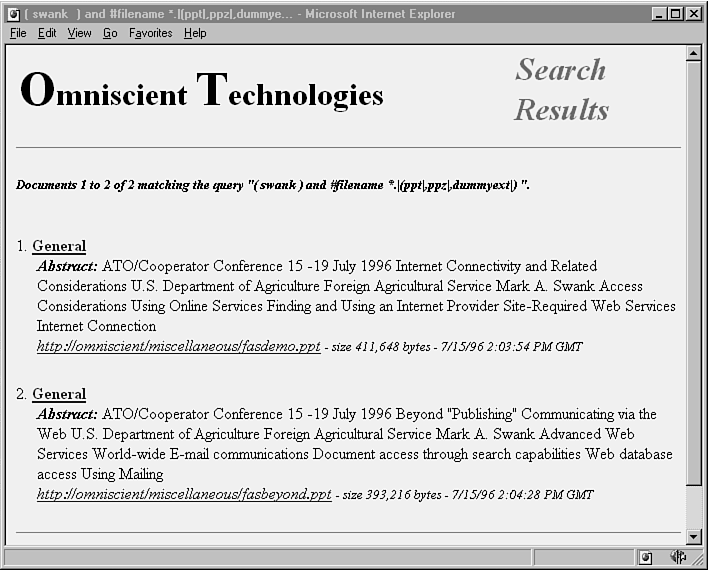
Following substitution, the value of the query restriction parameter becomes swank and #filename *.|(ppt,ppz|,dummyext) and is used by Index Server to execute the query, the results of which are presented in Figures 7.6 and 7.7. Note that the conditional statements used to set the value of the query restriction were designed to work with or without input to the text input box. Additionally, the dummyext file extension check was added to ensure that the query restriction that was constructed maintained the correct regular expression syntax used to match multiple filenames. In other words, it prevents an improperly formed query such as #filename *.|(ppt,ppz|,).
Figure 7.6. Results set for the query swank and #filename *.|(ppt|,ppz|,dummyext|)
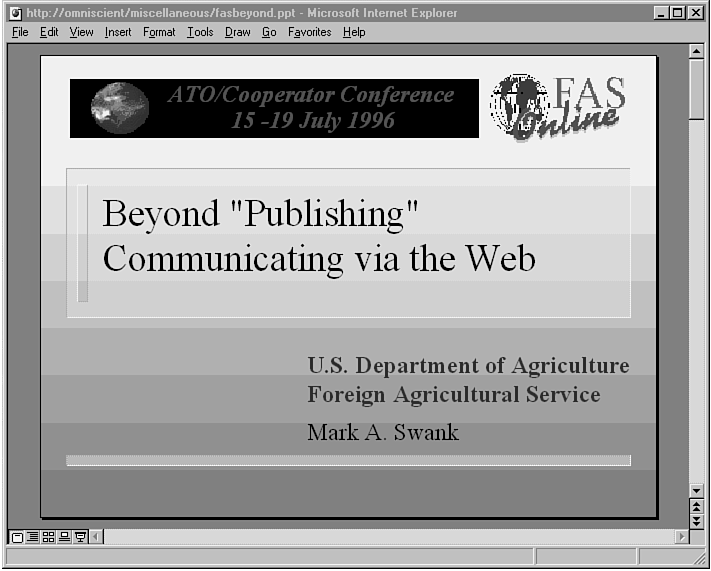
Figure 7.7. Result of clicking the second selection returned from the query in Figure 7.5. This is the first slide of a PowerPoint presentation rendered within Internet Explorer 3.0.
A great deal of fundamental material was presented in this chapter, including the basics of the query process, creating HTML query forms, and an in-depth dissertation on the structure, use, and design of Internet Data Query files. Combined with the query language knowledge you gained in Chapter 6 you are well on your way to being able to develop complex search and query tools for users of your Internet and intranet sites. After implementing a few query forms and .idq files, you'll begin to see how easy it is to add functionality and provide your users with even better tools—a certain way to guarantee that your site will garner heavy usage. You have not yet been provided with a complete picture, however. You haven't yet seen how results from user queries can be easily and aesthetically formatted and returned to the user in the form of HTML pages. This is the topic of the next chapter.